Volume Control Sound Launcher
- 4.5
- Rating
- 1.00M
- Installs
- Free
- Price
 Analysis by App-foxy
I usually notice volume problems at the worst possible moment: a ringtone that is too quiet when I am expecting an important call, alarm audio that is barely audible in the morning, or music that suddenly feels much louder than everything else. Volume Control Launcher is built for that narrow but useful problem. It is a free Android tools app from AtomApplications that gives volume adjustment a more direct place in my routine instead of making me hunt through several settings screens.
After spending time with it, I see the app as a small utility rather than a complete sound-management system. That distinction matters. It does not try to replace every audio setting on a phone, and it is not aimed at people who want an elaborate mixer. Its value is simpler: when I need to reach volume controls quickly, it reduces the distance between noticing a sound problem and correcting it. For many people, that is enough to make it worthwhile.
From a noisy or quiet phone to a practical fix
I find that volume problems often come down to choosing the right control, not simply moving a slider. This section looks at how a direct route to alarm, ringtone, and media settings can make that choice easier, especially when a phone is used by more than one person. From there, I’ll consider the boundaries worth keeping in mind before making the shortcut part of a shared routine.
You May Also Like

 Blood Strike: 2.5 Anniversary
Blood Strike’s Loadouts Turn Every Drop Into a Tactical Gamble
A close look at Blood Strike’s custom loadouts: how fast access to signature weapons reshapes its battle royale rhythm, rewards preparation, and narrows the gap between fights.

 Pandora - Music & Podcasts
Pandora’s Music Is Easy to Start, but Harder to Recover
Pandora’s strength is its low-effort path from a seed to a station. Its weak spot is how much confidence it asks you to place in connection, setup, and quiet recovery.

 8 Ball Pool
 Is Built on Rivalries, Rematches, and Routine
A close look at the rivalries, rematches, shared routines, and unanswered safety questions that turn a quick pool match into a persistent mobile community.

 Samsung Music
’s Quiet Strength Is Playing What You Already Own
Its reach comes less from spectacle than from dependable access to a personal library. That simplicity is both the app’s strongest retention engine and its ceiling.

 AccuWeather: Weather Radar
AccuWeather Review: A Quick, Clear Forecast for Everyday Decisions
For everyday plans, the best forecast is the one you can understand quickly. AccuWeather makes rain timing, radar, and local conditions easy to act on, with a few trade-offs.

 Hill Climb Racing
Why Hill Climb Racing Still Turns Crashes Into One More Run
A tiny car, a bumpy hill and one more upgrade: Hill Climb Racing keeps resurfacing because its simple chaos makes every near-miss feel personal.
More From Our News Desk



The starting condition: volume settings are easy to overlook
Android phones normally offer volume buttons, a sound panel, and a Settings route. Those options work, but they are not always equally convenient. The physical buttons may adjust the wrong stream for the situation, while the expanded sound panel can require an extra tap or two. If I am preparing an alarm, checking a ringtone, or changing music volume before handing my phone to someone else, that small delay becomes irritating.
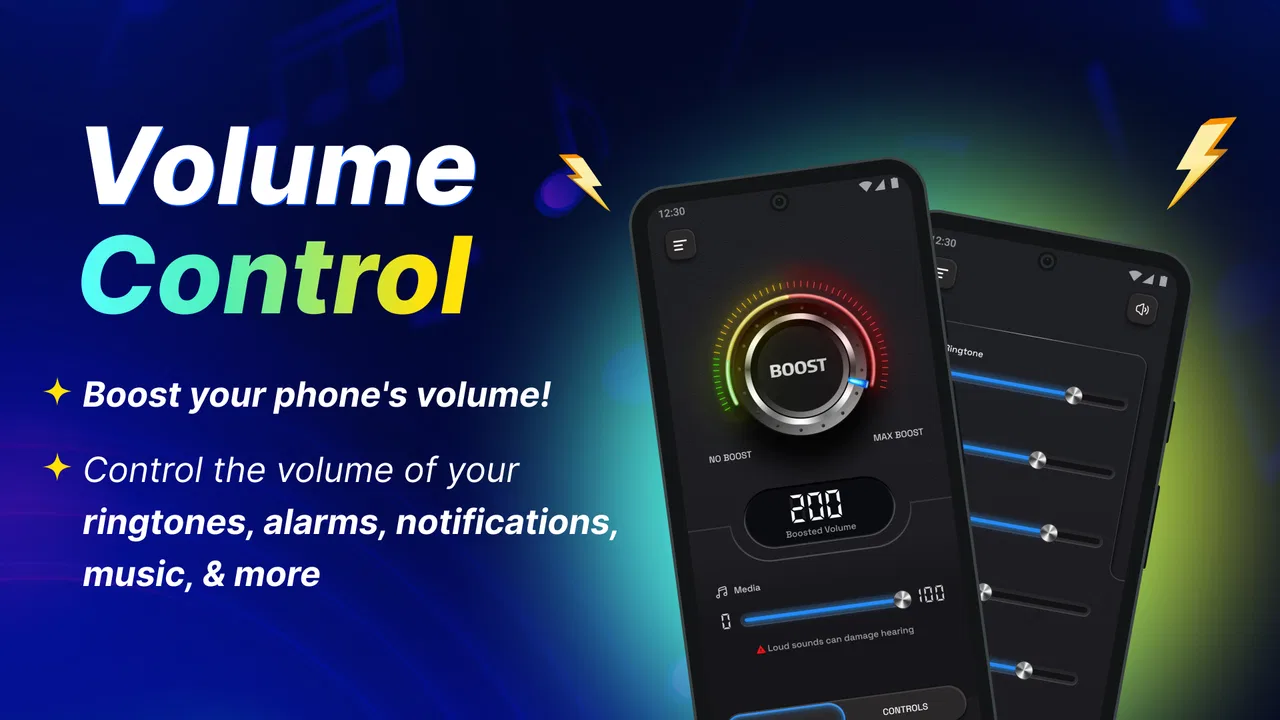
Volume Control Launcher approaches the issue as a launcher-style shortcut for volume control. The store summary focuses on alarm, ringtone, music, and related sound levels, and that matches the reason I would install it: I want a more obvious entry point to audio controls. Instead of treating volume as something I adjust only when a notification appears, I can make it part of a deliberate routine.
This is especially useful for people who switch between quiet and loud environments. At home, I may keep the ringtone restrained. Outside, I may need it higher. Before sleeping, I want to check the alarm level without accidentally changing media volume. The app fits those transitions because it puts the control task in front of me rather than leaving it buried among unrelated phone settings.
Step one: decide what needs changing
The best way to use this utility is to begin with the sound problem, not with the app itself. If music is too loud, I need the media control. If I am worried about missing a call, I need the ringtone level. If tomorrow’s alarm matters, I need to inspect the alarm volume separately. That sounds obvious, but it prevents a common Android mistake: lowering one stream and assuming every other stream changed with it.
My practical advice is to use the app as a checkpoint. Before going to bed, I would open the volume control entry, verify the alarm setting, and then check ringtone volume if I am expecting an early call. Before commuting, I would review ringtone and notification behavior. Before playing a video around other people, I would adjust media volume. The important insight is that the launcher is most useful when attached to a habit, not when treated as a random replacement for the volume buttons.
Because the app is categorized as a tools app, its appeal is functional rather than decorative. I would not install it for themes, entertainment, or customization. I would install it because a quick sound check is more dependable than trusting that the last volume change affected the stream I care about.
Step two: use the shortcut as the handoff into Android’s controls
The central workflow is a handoff. Volume Control Launcher starts the process, while Android’s own volume controls remain the place where the actual adjustment happens. That is a sensible arrangement for a small utility: it can make access easier without pretending to replace the operating system’s audio behavior.
In everyday use, I would open the app’s entry point, identify the relevant volume category, make the adjustment, and then return to the activity I was doing. This is quicker mentally than opening the full Settings application and searching for sound options. The gain is not necessarily a dramatic number of saved taps; it is the reduced chance of entering the wrong settings area.
That handoff also explains why expectations should stay realistic. The app is not a studio console, and I would not expect it to create independent sound profiles, automate changes around locations, or manage every audio source with its own schedule. Its job is to make volume access more direct. For a focused utility, that restraint is a strength, provided the user wants access rather than automation.
Step three: separate alarm, ringtone, and media checks
The most useful workflow I found is to treat each sound stream as a separate responsibility. For an alarm, I would check the alarm control while the phone is still in its nighttime setup. For calls, I would inspect ringtone volume before leaving home. For music or video, I would adjust media only after playback begins or just before it starts.
This separation helps avoid a frustrating scenario: lowering music before sleep and later discovering that the alarm was also affected, or raising media volume in public while assuming the ringtone was now loud enough. A shortcut to the right control encourages more precise behavior. The practical advantage is not louder sound; it is fewer wrong-stream adjustments.
There is another useful handoff here, between the phone owner and another person. If I lend my phone to a child or a friend for a video, I can set media volume without changing the way I receive calls. If I am showing someone a song, I can make the media adjustment and then restore it afterward. That is a modest feature of the workflow, but it makes the app more useful in shared-device situations.
A realistic evening-to-morning scenario
Imagine that I have spent the evening listening to music through the phone speaker. The media level is high, and I am about to sleep. I open the volume control shortcut, lower media volume so the next video will not start abruptly, and then check the alarm level separately. I leave ringtone volume at a level that should make an early call noticeable without making every notification intrusive.
The next morning, I can repeat the process in reverse. If I am leaving for work, I may raise ringtone volume and keep media at a moderate level. If I later enter a meeting, I can quickly reduce the relevant sound without navigating through the entire Settings app. The app does not create this routine automatically; it makes the routine easier to perform consistently.
This is where the app feels more valuable than its short store description suggests. The benefit comes from the sequence: identify the stream, open the direct control, adjust it, and hand the phone back to the task. The result is a little less uncertainty about what the next sound will do.
What happens after the adjustment
Once the volume is changed, I would test the result in the context that matters. For an alarm, that means checking the alarm setting rather than judging by the current media level. For a ringtone, I would remember that the phone’s sound mode and notification behavior can still affect what I hear. For music, I would listen briefly because speaker output and headphones can make the same slider feel very different.
This is an important limitation of any volume shortcut: a slider position is not the same thing as a guaranteed listening experience. Headphones, Bluetooth devices, silent modes, and individual app behavior can all influence the final result. Volume Control Launcher helps me reach the control, but it cannot remove those wider Android conditions. I appreciate the shortcut more when I treat it as one part of a check rather than as a promise that every sound issue is solved.
For that reason, I would not use it as the only preparation before an important alarm. I would still confirm that the alarm itself is enabled and that the phone is not in a mode that prevents the expected sound. The app improves access to volume controls; it does not replace sensible alarm checking.
How it compares with the usual alternatives
The first alternative is the physical volume rocker. It is faster when I am already holding the phone and listening to something, but it can be ambiguous. Depending on the current screen or active audio, it may change media volume when I intended to adjust ringtone volume. Volume Control Launcher is better when I want to choose the sound category deliberately.
The second alternative is Android’s built-in volume panel. That panel is familiar and needs no additional installation. For many users, it is completely sufficient. The app becomes more attractive when the standard panel feels too easy to dismiss or when I want a dedicated route to sound controls from my launcher. If I already know exactly which button sequence reaches each stream on my phone, the extra utility may not add much.
The third alternative is the full Settings application. Settings offers broader control and is the better choice when I am troubleshooting sound modes, notification behavior, connected devices, or system-wide audio behavior. Volume Control Launcher is more focused. It wins for a quick adjustment, while Settings wins for diagnosis and deeper configuration.
There are also manufacturer-specific sound tools and automation apps. Those can be better for scheduled profiles, location-based changes, or advanced device integration. I would choose one of those if my main goal were automation. I would choose this app if I wanted a lightweight, focused route to everyday volume controls without turning sound management into a project.
Where the workflow can break
The first point of friction is the boundary between the app and Android. Since the operating system still governs audio behavior, the experience can vary with the phone’s Android interface and manufacturer changes. The minimum operating-system requirement is Android 10, so anyone using an older device should not assume it will fit their phone. On a compatible device, I would still expect the familiar Android sound rules to apply.
The second weakness is scope. A person looking for equalizer controls, per-app volume, automatic bedtime changes, or detailed notification profiles may find the app too limited. Its focused design is convenient for direct access, but that same focus means it is not a universal answer to every audio complaint.
The third issue is that a shortcut can become unnecessary if the phone’s existing controls already match my habits. I would not recommend installing another utility simply because volume buttons exist. The app earns its place when I repeatedly forget which stream I changed, regularly move between sound environments, or want a more intentional alarm-and-ringtone checking routine.
There is also a small behavioral risk: easier access can encourage constant tweaking. If I keep changing volume without checking the active stream, I may still create the same confusion in a faster way. My solution is to pause long enough to name the target in my head—alarm, ringtone, or media—before making the change.
Who will get the most from it
I think the strongest audience is people who want a simple volume utility rather than a broad customization suite. It suits users who frequently switch between media playback, calls, alarms, and quiet environments. It can also help anyone who finds the standard Android route visually buried or mentally unclear.
It may be particularly practical for someone who relies heavily on alarms and wants a repeatable bedtime check. It is also useful for people who share a phone temporarily and need to adjust media without casually changing call volume. Those are not flashy use cases, but they are exactly the moments when a focused shortcut can prevent an avoidable mistake.
I would skip it if I am satisfied with the physical buttons and quick settings, or if I need automation and advanced audio processing. I would also look elsewhere if I expect the app to fix a faulty speaker, improve headphone quality, or override every sound mode. None of those problems are really about reaching the volume control more efficiently.
What the app’s reception suggests
Volume Control Launcher has a 4.7 average from around six hundred ratings, with over fifty thousand installs. Those figures make it clear that the idea has found an audience, although they do not change my view that the app is intentionally narrow. The positive reception makes sense for a utility that solves a small, recurring annoyance without asking users to learn a complicated system.
It is free and rated for Everyone, which lowers the barrier to trying it. AtomApplications has kept the product positioned as a practical tool, and the current version is 1.4.0. Since it was released on December 3, 2025, I would pay attention to how it behaves on my specific phone rather than assuming every Android interface will present volume controls identically.
The free price is helpful because the app’s usefulness depends heavily on personal habits. I can try it without committing to a paid sound-management package, then decide whether the shortcut genuinely saves me effort. For a small utility, that is the right way to judge it: use it during the exact transitions that normally cause volume confusion.
My final take after following the whole flow
Volume Control Launcher is a focused answer to a focused problem. I start with a phone whose alarm, ringtone, or media level needs attention; I use the shortcut to reach the appropriate control; Android handles the adjustment; and I return to the task with a clearer idea of which sound stream I changed. That complete flow is more useful than the app’s simplicity might suggest.
My recommendation is positive, with a clear condition: install it if direct access to separate volume controls would improve your daily routine. Use it as a quick checkpoint before sleep, before commuting, or before sharing media. Do not choose it expecting automation, audio enhancement, or deep troubleshooting. If your main frustration is reaching the right volume setting quickly, this free tools app is a sensible and low-risk addition.
For me, its strongest quality is reliability of intention. The app encourages me to decide what I want to change before I touch the slider. That small difference can prevent the classic Android volume mistake—fixing music when I meant to fix the alarm. If your phone’s built-in controls already feel clear, you may not need it. If they do not, this is the kind of modest utility that can quietly earn a permanent place in your everyday workflow.
FAQs for Volume Control Sound Launcher
01What features does Volume Control Launcher offer?
Volume Control Launcher provides users with an intuitive interface to manage volume settings across different apps and system functions. It allows you to customize profiles, set schedules for automatic adjustments, and offers quick access through a user-friendly widget. The app is designed to streamline volume management on your device.
02Is Volume Control Launcher compatible with all Android and iOS devices?
Volume Control Launcher is designed to work on most Android and iOS devices. However, compatibility can vary depending on the version of the operating system and specific device models. It’s recommended to check the app’s compatibility on the respective app store page before downloading.
03Does Volume Control Launcher consume a lot of battery?
The app is optimized to minimize battery consumption. It primarily operates in the background to provide seamless volume management without significantly impacting battery life. Users have the ability to adjust settings to further reduce any potential battery usage, ensuring efficient operation.
04Can I customize volume profiles in Volume Control Launcher?
Yes, Volume Control Launcher allows complete customization of volume profiles. Users can create multiple profiles tailored to different scenarios, such as work, home, or travel. Each profile can be configured with specific volume levels for notifications, media, alarms, and more, offering personalized control.
05How easy is it to use Volume Control Launcher for beginners?
Volume Control Launcher is designed with user-friendliness in mind, making it accessible to beginners. The interface is straightforward, with easy-to-navigate menus and clear instructions on setting up profiles. Additionally, the app provides helpful tips and guides for first-time users to get started quickly.
Pros
- User-friendly interface
- easy to navigate.
- Customizable sound profiles for flexibility.
- Quick access to volume settings.
- Supports multiple audio streams.
- Minimal battery consumption.
Cons
- Lacks advanced audio tuning features.
- Occasional lag on older devices.
- Limited widget customization options.
- Ads in the free version can be intrusive.
- No integration with some third-party apps.

Volume Control Sound Launcher
Gallery